Screen layout
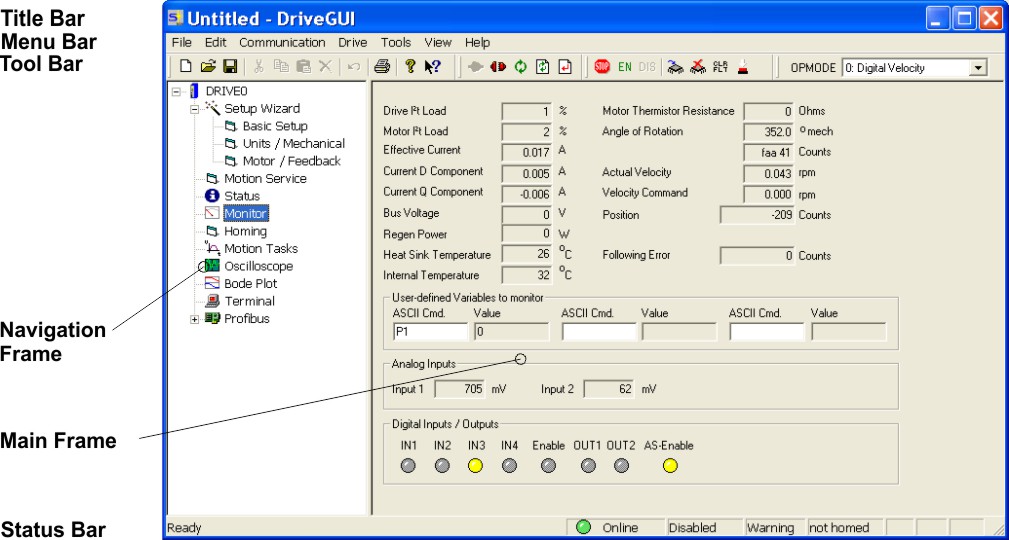
Title Bar
The program name and the name of the currently valid data set (amplifier) are displayed in the title bar.
Menu Bar
|
File |
New |
A new data set is created for editing. The current data set will be closed and not saved. |
|
Open |
A data set is read from the data medium (hard disk, diskette) and becomes the currently valid set. The servo amplifier must first be disabled. |
|
|
Save |
Saves the current data set in a file on your PC |
|
|
|
Prints the current data set to you Windows standard printer. |
|
|
all other functions |
Standard Windows |
|
|
Edit |
functions |
Standard Windows |
|
Communication |
Connect |
Connect to servo amplifier |
|
Disconnect |
Disconnect servo amplifier, software switches to offline mode |
|
|
Reload |
Reloads all parameters and motion tasks data |
|
|
Refresh page settings |
Refreshs the old, unchanged data of the actual sreen page. |
|
|
Apply page settings |
Saves the parameters of the actual page to the RAM of the servo amplifier. |
|
|
Select Interface |
Select the communication network |
|
|
Interface parameters |
Adjust the communication parameters |
|
|
Drive |
Stop |
Stop movement in OPMODE 0, 2, 8 |
|
Enable |
Software Enable for power output stage |
|
|
Disable |
Software Disable for power output stage |
|
|
Save to EEPROM |
The actual parameter set is permanently saved to the EEPROM of the servo amplifier. |
|
|
Clear EEPROM |
The manufacturer default parameter set will be saved to the EEPROM of the servo amplifier. |
|
|
RESET |
Hardware reset (cold start) |
|
|
Clear errors |
Actual error messages are quit. The reaction depends on the actual error: immediately ready to operate or reboot. |
|
|
Select OPMODE |
Select the operation mode of the servo amplifier OPMODE |
|
|
Tools |
Upgrade Tool |
Start of the Upgrade Tool, see Software Upgrade |
|
CalcLK |
Start of the Converter Tool for profile table data |
|
|
SafetyGUI |
Start of the Setup Software SafetyGUI for built-in Safety Cards |
|
|
MacroStar |
Start of the Makro Editor MacroStar, see Macro Programming |
|
|
Select language |
select the language version of the software |
|
|
View |
Tool bar |
Visibility of the tool bar |
|
Status bar |
Visibility of the status bar |
|
|
? |
Contents |
Online help start page for the setup software |
|
Help F1 |
Help page for the active screen |
|
|
Support |
Contact information for questions |
|
|
About |
Version of the setup software |
Symbol Bar

|
Standard Windows |
|
|
Connect |
|
Enable (Shift+F12) |
|
|
Disconnect |
|
Disable (F12) |
|
|
Reload |
|
Save to EEPROM |
|
|
Refresh page settings |
|
Clear EEPROM |
|
|
Apply page settings |
|
Clear errors |
|
|
Stop movement (F11) |
|
Reset |
|
|
Context help |
|
Help for the current screen |



|
Operation mode of the servo amplifier : OPMODE |
Status Bar
The communication status between servo amplifier and setup software is indicated on the left side of this bar. On the right side of the status bar, the operation status (online/offline) and several other status messages are monitored.
Navigation Frame
|
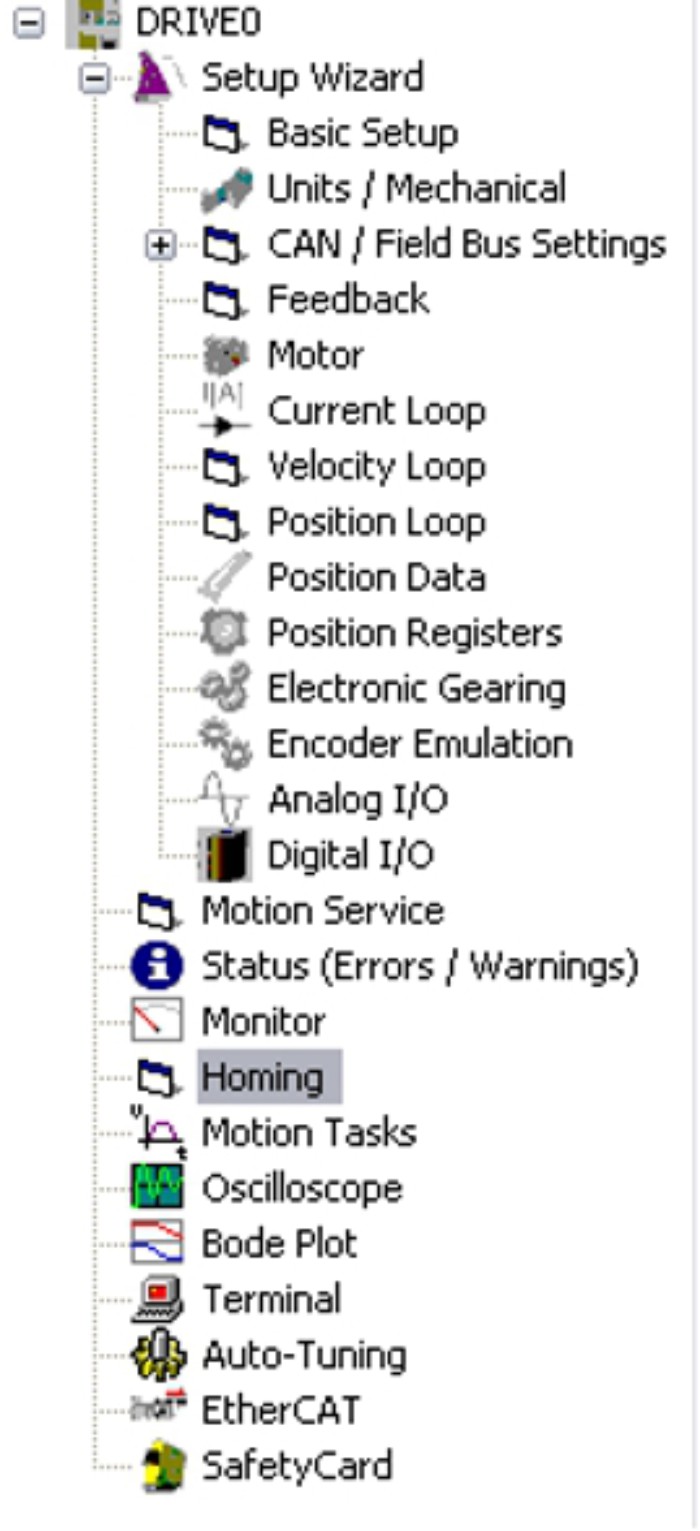
In a structure similar to Windows Eplorer, links to all screen pages are listed that you need for setup, optimizing and monitoring of the servo amplifier. The selected screen is shown in the main frame. The top level of the tree shows the name of the connected servo amplifier (DRIVE0 in the example). |
Main Frame
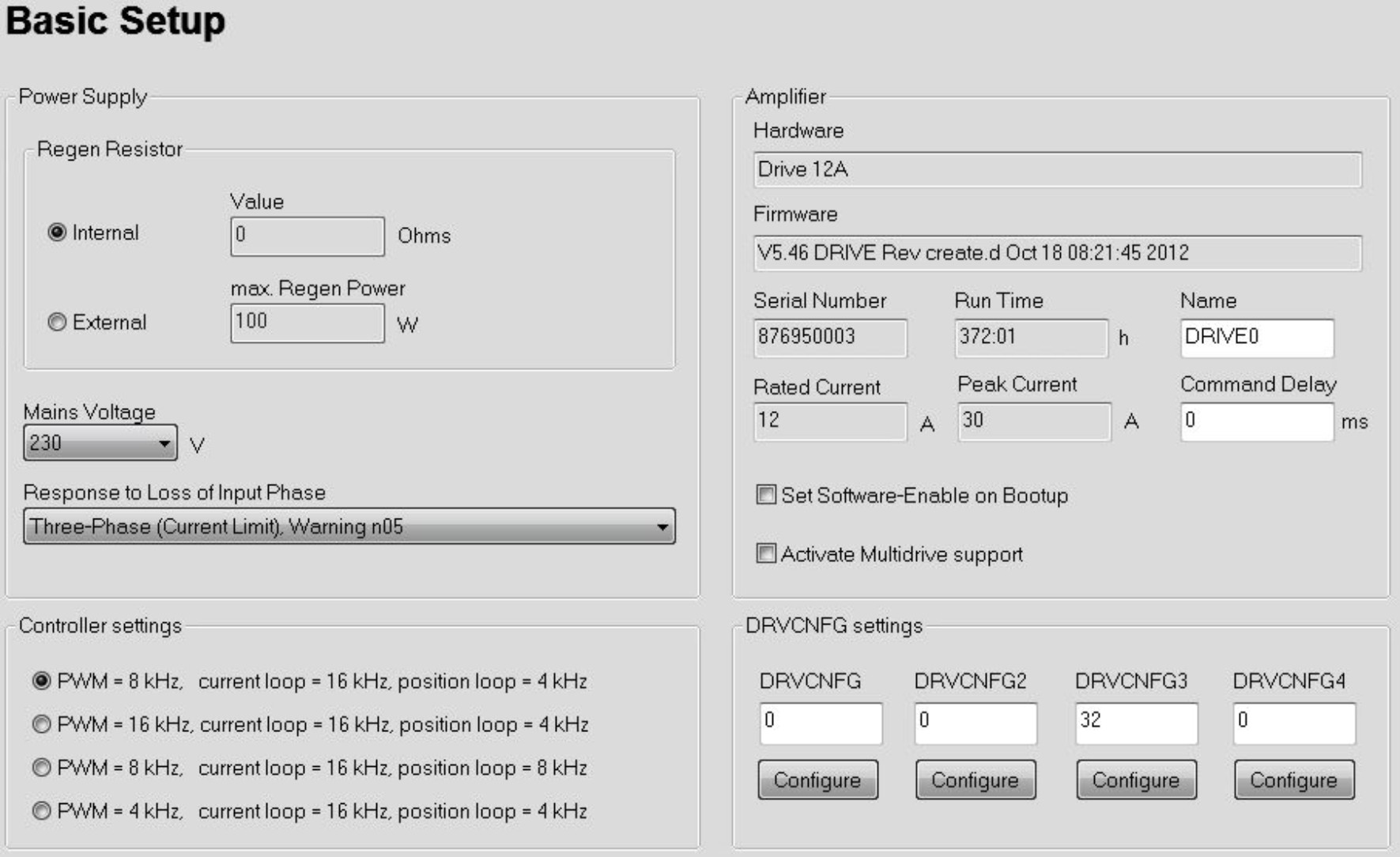
The main frame (basic setup as an example) allows changing parameters, monitoring actual values of the servo amplifier and selecting functions.


